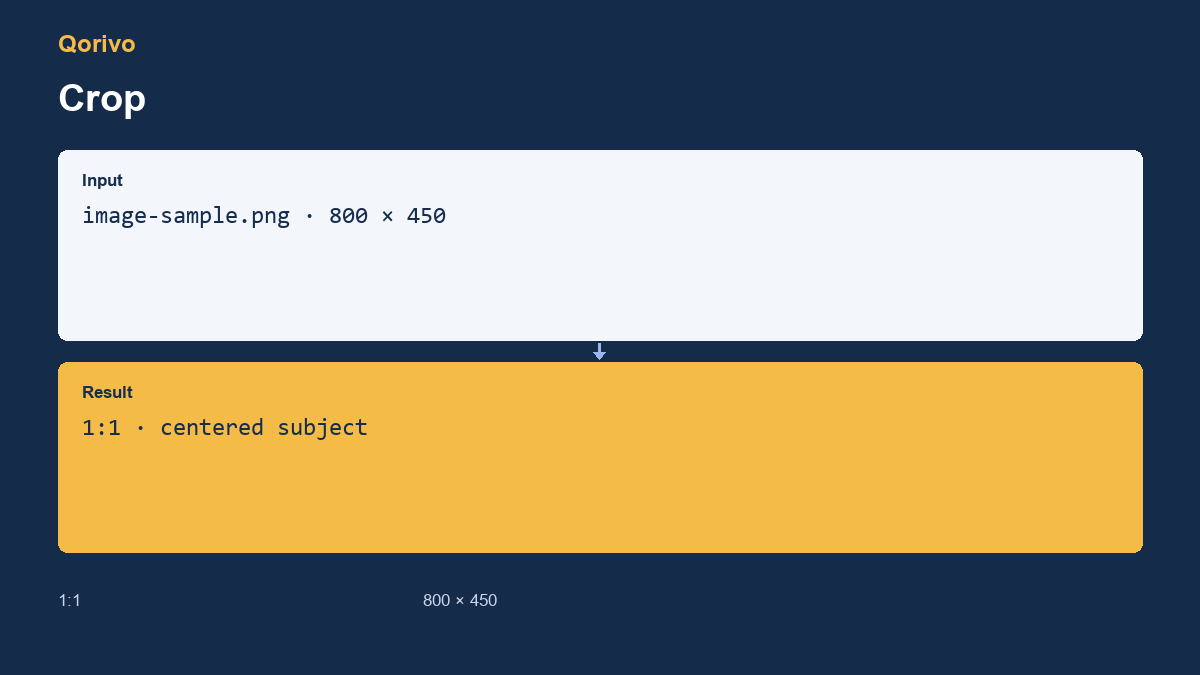
A square avatar works best when its main subject has enough room to read clearly inside an even frame. In the documented example, image-sample.png is cropped at a 1:1 ratio and centered on the picture’s middle shape. The task is not to promise a fixed pixel size, because the final dimensions depend on the selection and the source image; the reliable target is equal width and height. A careful process therefore combines visual composition with a simple technical check. First inspect the image and identify the middle shape, then set the crop ratio to 1:1, move the selection over that shape, apply the crop, and download the result. Before doing anything destructive, save the source image. Pixels outside the selected rectangle are discarded when the crop is applied, so retaining the original protects against a composition that later feels too tight or off-center. The finished file should be checked in an image viewer, where you can confirm that the shape remains legible, the frame has comfortable breathing room, and unwanted side regions have disappeared.
Inspect the subject before selecting
Load image-sample.png and study the complete picture before opening or moving the crop selection. Locate the middle shape that should anchor the avatar, and notice how much surrounding space helps it remain recognizable. This inspection matters because a mathematically square frame can still produce a poor avatar if the subject is clipped, pushed toward an edge, or crowded by nearby visual elements. Treat the shape’s position as the composition’s starting point rather than assuming that the image center is automatically correct. At this stage, compare the desired avatar view with the full source and identify side regions that can be removed without weakening the subject. Also save a separate copy of the source image before applying any change. The cropper’s destructive result is limited to the selected rectangle, so the untouched source is the practical fallback for a later adjustment or a different avatar composition.
Set 1:1 and place the selection
Set the image-cropper’s crop ratio to 1:1, then position the square selection over the middle shape. A 1:1 setting makes the selected width and height equal, but it does not determine a universal exact crop dimension; that dimension depends on the source and the selection available in the example. Move the selection until the middle shape has useful breathing room on each side and is not unintentionally cut by the frame. Keep the composition centered on the shape, not merely on the canvas, because the visual subject may sit slightly away from the source image’s geometric center. Review all four edges before applying the selection: check that important parts of the shape remain inside, that the side regions intended for removal are outside, and that the square does not feel cramped. If the composition is uncertain, return to the saved source and try a new position rather than relying on a discarded crop.
Apply, download, and inspect the result
Once the square frame is balanced, apply the selection and download the crop. The documented expected result is a square crop centered on the middle shape. Open the downloaded file in an image viewer and inspect it at a useful size rather than judging only from the cropper preview. Confirm that the frame reads as square, the middle shape remains the clear focal point, and the removed side regions are no longer present. This check also catches practical issues such as an accidental selection offset or a download that does not correspond to the final adjustment. Compare the result with the saved source if you need to verify what changed. The goal is a usable composition, not merely a completed button sequence: the avatar should preserve the subject’s identity while leaving enough surrounding space for the frame to feel intentional.
Verify the geometry and understand the limitation
The final verification is straightforward: the image width and height should match, and the side regions that fell outside the selected rectangle should be gone. Matching width and height confirm the 1:1 ratio. The selected area determines the actual pixel count. Visual breathing room remains a judgment call, so equal sides alone cannot guarantee a good avatar; a centered square can still be too tight if the middle shape nearly touches an edge. The main practical limitation is irreversible loss within the edited result: pixels outside the selected rectangle are discarded when the crop is applied. Keeping image-sample.png as the source preserves flexibility for another selection, a different focal point, or a less constrained composition. In short, use 1:1 for the geometry, the middle shape for placement, visual inspection for composition, and the saved source for recovery.
- Set the crop ratio to 1:1.
- Center the selection on the middle shape with breathing room.
- Verify equal width and height, then keep the source image.
