










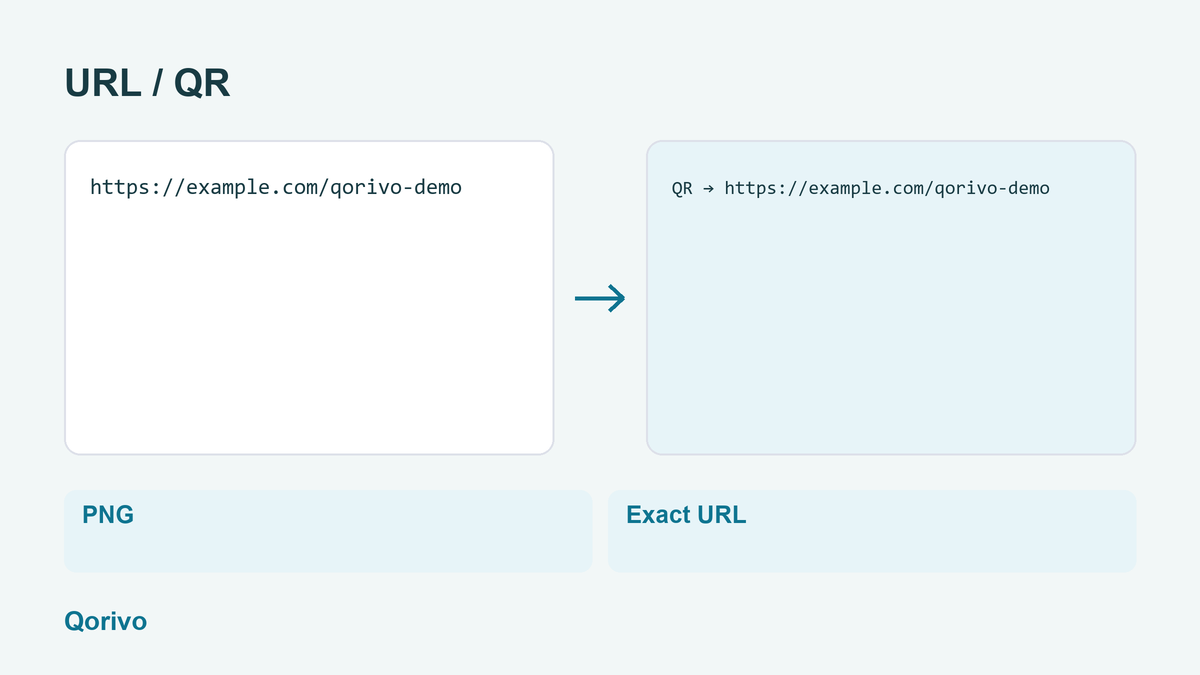
A QR code can look correct while encoding the wrong address, losing part of a path, or becoming unreadable after cropping, printing, or adding a logo. This Qorivo workflow uses the exact sample address https://example.com/qorivo-demo and checks both creation and decoding. The goal is not merely to produce an attractive QR image, but to confirm that a scanner recovers the same scheme, hostname, and path that you prepared. Generate the code at the default size without a logo, download it, and decode the saved image as text. Then compare the returned value character by character with the original address. Finally, preserve the full light border and test the version people will actually receive, including its real print size or logo treatment. If decoding reveals a URL, inspect its hostname before deciding whether to open it; never follow an unknown decoded URL automatically.
Prepare the exact address before generation
Start with the complete address https://example.com/qorivo-demo, including its scheme and path. Treat every part as meaningful: https identifies the scheme, example.com identifies the hostname, and /qorivo-demo identifies the path. Do not shorten the sample, remove punctuation, add spaces, or rely on a scanner to correct a mistake later. Preparing the address first gives you a fixed reference for every subsequent comparison. The documented example is deliberately specific because QR verification is about exact recovery, not approximate destination matching. Keep the original string available while generating and decoding so that differences are easy to detect. If the text returned by a decoder changes the scheme, hostname, or path, the image has not passed the check, even if a browser might still appear to reach a familiar page.
Generate a clean default image
Use qr-code-generator to create a QR image for https://example.com/qorivo-demo at the default size and without a logo. Download the generated image rather than relying only on the preview, because the saved file is the artifact that must be tested. Avoid introducing a logo during this baseline generation: a logo changes the center of the symbol and can reduce the reliable scanning area. The expected output at this stage is a QR image that retains the complete light border around the code and encodes the prepared address. Keep the reference URL below available for comparison. A QR image alone cannot tell you whether it contains a typo. The proof comes from decoding the saved image and comparing its returned text with the original address.
https://example.com/qorivo-demoDecode as text and compare exactly
Use qr-code-decoder to extract the content from the saved PNG. First save the sample PNG with its full light border intact. Upload the image, decode it, and read the returned value as text rather than opening it immediately. In the documented example, the decoder result is https://example.com/qorivo-demo. Compare that value character by character with the prepared address. A successful verification preserves the scheme, hostname, and path without extra spaces. If a cropped version fails, retry with the original image and its still-visible border; a failure after cropping may indicate a presentation problem rather than a changed payload. When the returned value is a URL, inspect the hostname before deciding whether to open it. This separation between reading and visiting protects the verification step from automatically following an unknown destination.
Test the version that will be shared
A clean default image is only the baseline. Before sharing, test the actual presentation people will scan: preserve the full light border, check the intended print size, and repeat the scan on any logo version. A logo may cover useful modules, while resizing or trimming the border can make the code harder to locate or decode. The practical limitation is that successful decoding of the downloaded default image does not guarantee successful decoding from every printed, compressed, resized, or branded copy. Therefore, verify the final artifact at its real print size or in the actual delivery format. If that version fails, return to the clean image, restore the border, remove the logo, or increase the usable size, then decode again. Share only after the final version still returns the exact string https://example.com/qorivo-demo.
- Generate at default size without a logo.
- Decode as text and compare the exact URL.
- Keep the light border and test the final print or logo version.
