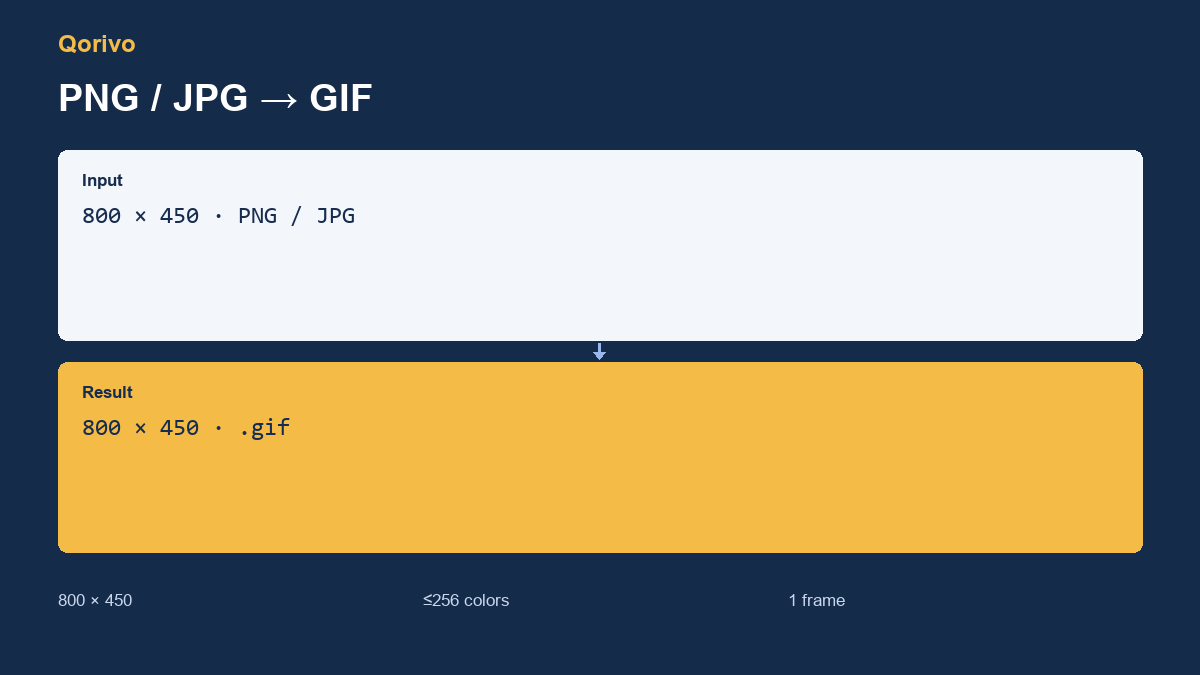
Converting an image to GIF is useful when you need a widely supported static format, but the export can change both transparency and color appearance. The documented examples use two 800 × 450 samples: a PNG with transparent areas and a JPG containing gradients. In both cases, the result is an 800 × 450 .gif, and the tool produces one frame rather than an animation. The PNG example is mainly a transparency check, while the JPG example demonstrates palette conversion. Reviewing the downloaded files in an image viewer and checking their properties makes the output easier to understand before you use it elsewhere.
PNG to GIF: checking transparent areas
The PNG-to-GIF workflow creates a single-frame GIF from the 800 × 450 PNG sample. First save the sample from your device and upload it, then convert the image into GIF and save the output. Open the resulting file in an image viewer and compare its corners with the original PNG. Transparent pixels cannot remain transparent in the same way during this static GIF export, so the expected 800 × 450 .gif shows white areas where the PNG was transparent. This makes the conversion useful for confirming how a transparent design will look against a white-filled result. The comparison should focus on the corners and any other deliberately transparent regions, because those areas provide the clearest evidence of flattening. Remember that the output is one frame, so this workflow does not create motion or preserve animation states.
JPG to GIF: observing palette conversion
The JPG-to-GIF workflow starts with the 800 × 450 JPG example. Save the sample, upload the file, convert it, and open the downloaded GIF in an image viewer. Then check the file properties and compare its colors with the original JPEG. The expected result is an 800 × 450 .gif with one frame. GIF supports at most 256 entries per color table, so it can represent fewer colors than the input JPEG. Areas with smooth gradients may therefore look different after conversion, with visible shifts, banding, or simplified transitions depending on the source image. Compare the widest color transition in both files at the same zoom level. Color bands are easier to see there than in an area of solid color. A color change does not necessarily indicate a failed conversion; it may be the normal consequence of fitting the image into a GIF palette.
A verification workflow that separates causes
Use a consistent review sequence for both examples so that transparency changes are not confused with palette changes. Start by recording the sample type and dimensions: 800 × 450 · PNG for the transparent test, or 800 × 450 · JPG for the gradient test. After conversion, confirm that the result is listed as 800 × 450 · .gif. Open the file in an image viewer, inspect the corners for white replacement in the PNG case, and inspect gradient transitions in the JPG case. Next, check the file properties to confirm that the GIF has one frame. Comparing the original and output side by side helps isolate the expected behavior: white areas point to transparent-region filling, while altered gradient colors point to the GIF palette limit. If the dimensions or frame count differ from the documented expectation, repeat the upload and conversion check before judging image quality.
Practical limitations before using the output
These conversions are best treated as static-format preparation and inspection, not as lossless preservation. The PNG workflow intentionally exposes a limitation of flattening: transparent regions are expected to become white in the output. The JPG workflow exposes a separate limitation: GIF’s color table can contain at most 256 entries, so detailed JPEG color variation and smooth gradients may not survive unchanged. Both documented results remain 800 × 450 .gif files with one frame, which means the tool is not suitable here for animated GIF creation or for retaining multiple frames. Before publishing or embedding an output, verify the corners, gradients, dimensions, file properties, and frame count in the context where the image will be viewed. Keep the original PNG or JPG available when transparency, full color detail, or later editing may still be required.
- PNG output: confirm white areas replace transparency.
- JPG output: inspect gradients for palette changes.
- Both outputs: verify 800 × 450, .gif, and one frame.
